Tuesday, 25 April 2017

Boolean Field in Visual Foxpro and MS SQL Server

In Visual Foxpro 9 (VFP) and it’s lower versions, there exists a logical field with which a programmer can use to have some kind of a digital flip-type switch that we regularly use in queries or in a control, like a checkbox, for example. If one can imagine how a light switch works, the idea behind is the same with that of a logical field. The apparent difference emerging from that point being, is that the usual ON and OFF status that we regularly see on a common household light switch is omitted, the logical field in VFP uses a boolean value of either .T. or .F. instead, with “.T.” representing the value for TRUE and “.F.” for FALSE.

So it’s kind of like when your dad asks you if you have left the garage lights on overnight, you may probably hear, “Is it TRUE that you have left the lights on last night?”

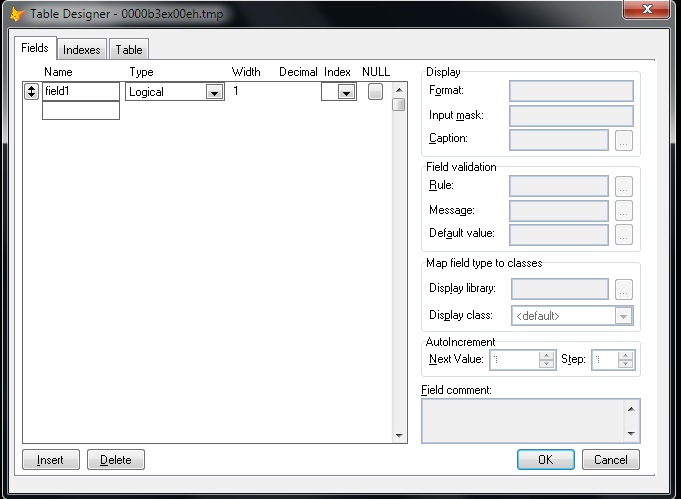
Anyway, Creating a logical field in a VFP cursor is as simple as this.

Create Cursor curTest (field1 l)

Select curTest
MODIFY STRUCTURE


But in MS SQL Server, with versions like 2008 or 2012, there is no Boolean or Logical field type. This is probably the reason why I see many software developers turning their trust to characters and integer types just to work around this inadequacy. 

For instance, a programmer can use several of the INT (integers) type field just to represent a value of 0 or 1. Because 0 and 1 can both respectively represent the ON and OFF nature of a basic switch. The idea makes sense until you add another value, like “2” then it loses the foremost characteristic of being a “flip-type” switch. 

The Workarounds in SQL Server


I’ve seen programmers use the int type, which has a range of -2^31 (-2,147,483,648) to  2^31-1 (2,147,483,647) and can take up storage of 4 Bytes in the table. Others use the smallint type, of which range is shorter than the int type but takes up 2 Bytes of storage space. There is also the tinyint that has a range of only 0 to 255 and takes up one Byte of storage space.

One thing to consider when you are feeling a bit determined to use these INT types for a simple switch is that each column of int created in a table will take up the storage space that I mentioned above. For example, if you have two columns of a tinyint field, each column will respectively take up one Byte of storage in a table.

At the other end of the spectrum, there are also those who use a character field to represent a switch in a similar fashion. These programmers, like I do in the early stages of my programming career, have liked the idea of using CHAR(1) type field to mimic the purpose of a logical field. The reason being is that it’s a straightforward solution and it’s easy to read. All that one needs to do is update the char field with a string having a value of “T” or an “F” character. 

The downside of using a char(1) field, however, is that it can take up other characters as well like “A” for instance, aside from the “T” or “F” characters. Also, each char(1) type column’s value in a table will take up 1 Byte of storage. Therefore, if you have two of this column in your table, the values will take up 2 Bytes and so on.

What I Think Is the Right Way to Do It


The best thing to do, in my humble opinion, is to use a bit type field in MS SQL Server. This type accepts integer data type like a bit value of 1 or 0, and it can have a NULL value as well.  

In this example, I’ve created a temporary table with a bit type field. I then inserted a 1 value.

If (Select name from sys.tables where name like '%#testTable%') is not null
      Begin
            drop table #testTable;

            create table #testTable (field1 bit);
     
            insert into #testTable (field1) values (1);
           
            select field1 from #testTable;     
      End

The advantage of the bit type is that it can automatically convert the string values TRUE and FALSE to bit values.  The “TRUE” becomes 1 and “FALSE” becomes 0.

If (Select name from sys.tables where name like '%#testTable%') is not null
      Begin
            drop table #testTable;

            create table #testTable (field1 bit);
     
            insert into #testTable (field1) values ('TRUE');
           
            select field1 from #testTable;     
      End

Sending Updates from Visual Foxpro


Luckily, MS SQL Server will convert the boolean value sent from Visual Foxpro by way of SQL-Pass Through or (SPT) connection.  

For this example, I have a table that I use for keeping LEAVE PAYS. It has a bit type column named isLeapYear. Let’s see what’s in it.


Notice that all other values in the isLeapYear column has zero values except for what’s in the fourth row, which has a bit value of 1.

Now, let’s try and change that into 0 (zero) by sending an UPDATE from Visual Foxpro with this command.

=SQLExec(oHandle.nHandle,'Update MyDatabase.dbo.MyTAble Set isLeapYear = .F.')


Now, we can see that all of the values in the isLeapYear column became zeros. 

Showing the Results with a Checkbox Control in a Grid


Let’s change the value of the fifth column, in the first row to 1. Then we’ll pull the records from MS SQL Server to a Visual Foxpro Grid that has a checkbox column.

=SQLExec(oHandle.nHandle,'Update MyDatabase.dbo.MyTAble Set isLeapYear = .F. where lpID = 9')


 So, this is how it should look like now. 


After we pulled the records from SQL Server, this is what a grid with a checkbox control would look like. Notice that the checkbox is automatically ticked because the underlying value in that column is .T. while the rest have .F. values. I will discuss how I created this checkbox in a grid  on a new post once I get a free time again.

Final Thoughts


Visual Foxpro is somehow lucky to have found its Logical values automatically converted by MS SQL Server to bit values. 

But another point worth considering for using a bit type field is that the SQL Server Database Engine optimizes storage of bit columns.  For example, if a table has less than 8 bit columns, all of the columns are stored as 1 byte. Having more than 8 bit columns but less than 16 will be stored as 2 bytes and so on.

As opposed to using an int type that always stores 1 byte or more per column, this is a great way to conserve server storage space if one is too concern about data normalization and storage conservation. 

Have a nice day!

Monday, 13 March 2017

CinchPro Payroll System


Right now, I'm working on a payroll system I named CinchPro Payroll System. This will be used as a separate payroll system or in conjunction with Tangosoft Biometric Attendance Software. The software fits Papua New Guinea's payroll procedures including tax deductions.

CinchPro comes from the word cinch, which means "easy" and pro as professional. The program aims to simplify payroll processing by removing much of the hassle and let the system work things out for you.

Tuesday, 27 December 2016

Price Maintenance

The Price Maintenance module in tanGoSoft allows updating of the prices level 3 and 5 in ICE. The ICE system can wonderfully create more than 1 type of price to serve different purposes. For example, in the company that I am currently employed, the price level 1 stands for retail and level 3 for wholesale.

This is the form that is used to modify the product in ICE Inventory System. As we can see, there are three levels at the moment. The way this is designed is so lovely and I really love it. The only thing of concern here is that when we make a purchase and receive that to ICE, the new prices based on the last purchase cost will have to be manually updated by the user.

Usually, an ICE user will have to go through each item recently purchased and manually update the price in the module above. In the company that I am currently employed, the user will get the hint from the GP calculator that comes together with the ICE's Goods Receiving module. The GP will be negative if the price of the item being received is outdated.


To avoid having to go through all the items individually and to make sure that all items recently received will have the correct selling prices, the company that I am working with has requested me to create a module that can perform a price update of any given level. Hence, I created the Price Maintenance above to do the job.

In the Price Maintenance, the user will have the ability to select which items under a certain invoice will have the prices updated. It also has the option to create new price level if they are not created in the first place. It also has the rollback option if the user has mistakenly updated the wrong items.


Note:
If you are utilizing ICE Inventory software in your company and you wish to know more about tanGosoft, you may send your inquiry to software@glenvillar.com.

Wednesday, 21 December 2016

The TanGosoft

TANGOSOFT is a supplementary program that I developed for a shop that is using ICE (Inventory Control Expert) Inventory. The purpose of which, is to address the few shortcomings of the ICE system and make it rather easier to accomplish certain tasks that is difficult or probably impossible to achieve with ICE alone.

The ICE System is a matured system and a pretty impressive inventory system made by EASI. However, I've been administering ICE System in the current company that I am employed with for more than 5 years now and I can say that I have grown pretty much familiar with it to know which things it is best at or is in need of improvement.

But any improvement in ICE itself would mean that the makers of ICE should modify the original source code. I believe that any modification may spell "additional fees" because as I've said, ICE is a matured system and have addressed much of what an inventory system needs.


This is the LOGIN page for tanGosoft. Its current version supports two companies, the Tango which uses ICE systeam and TWS which does not, and only uses tanGosoft programs. 

I've originally developed tanGosoft to initially help me with my stocktake routines. But as times went by, I had put in more functionalities that I deemed necessary for either speeding things up or just making things possible.


Tangosoft for ICE Inventory - Through The SQL
This is the main deck for tanGosoft. It displays the current user, the other logged users, the latest Cheque-rediscounting client, some history, the last item photo searched and some other relevant stuffs.


This is the main deck for the ICE Inventory System. Again, the ICE software is a matured and a wonderful inventory program which I admired for its simplicity and able to handle small to large shop operations. But I can say that using ICE together with tanGosoft is still fulfilling than just the ICE alone.

Here in Papua New Guinea, I have seen numerous shops that are using the ICE POS and ICE System to handle both the wholesale and retail sales.


Note:
If you are utilizing ICE Inventory software in your company and you wish to know more about tanGosoft, you may send your inquiry to software@glenvillar.com.

Thursday, 24 November 2016

How To Convert Number To Words In Visual Foxpro 9.0

I created these funtions a long time ago, but I believe that there are still a number of software developers out there who are using VFP as their primary or secondary programming language.

To use this, save all these codes in a singe PRG file. To call the function anywhere in your VFP program, use this syntax (please do not use commas):

? NumToWord(12437.95)

****************************************
* Demo on converting number to words
* Primary usage: Philippine Local Checks
* Author: Glen T. Villar
* Date Created: January 13, 2009
* Code Updated: 12 April 2019
*****************************************

Function NumToWord(Par1 As Long)
 If Mod(Par1,1) > 0
  m.lcNewItem = FixItUp(Par1)+' Dollar and '+FixItUp(VAL(RIGHT(TRANSFORM(Par1,"9999999999999999999.99"),2)))+' Cents'
 Else
  m.lcNewItem = FixItUp(Par1)+' Dollar'
 Endif
 Return (m.lcNewItem)
Endfunc

Function FixItUp(Param1 As Long)
 ****************************************
 *  Author: Glen T. Villar
 *  Function for Converting Number to Words
 *  Primary usage: Philippine Local Checks
 *  Secondary usage: American Local Checks
 *  Date Created: January 13, 2009
 *  Date Modified: August 8, 2009
 *  Date Modified: April 12, 2019  
 *****************************************
 If !Empty(Param1)
  Dimension lArray[6]
  Local lcAnswer, nReiterate, lnLeftSide, lcWord, lcConcatenate, ;
   lnMove, lcTaken, lcWordsExt
  If !Empty(Param1)
   lcLeftPart = Alltrim(Transform(Int(Param1)))
   lnLeftSide = Len(m.lcLeftPart)
   nReiterate = 0
   For lnVar = 1 To Int(m.lnLeftSide/3)
    lnLeftSide = lnLeftSide - 3
    nReiterate = nReiterate + 1
   Endfor

   lcOnes = '1One,2Two,3Three,4Four,5Five,6Six,7Seven,8Eight,9Nine,'
   lcTees = '10Ten,11Eleven,12Twelve,13Thirteen,14Fourteen,15Fifteen,16Sixteen,17Seventeen,18Eighteen,19Nineteen,'
   lcTens = '2Twenty,3Thirty,4Forty,5Fifty,6Sixty,7Seventy,8Eighty,9Ninety,'
   lcTitle = '2Thousand,3Million,4Billion,5Thrillion,6Quadrillion,'

   lnMove = m.nReiterate * 3
   lcParam = Alltrim(Right(m.lcLeftPart,m.lnMove))
   lcClassify = ''
   lcClassify = Iif(Between(Mod(Val(Alltrim(Left(m.lcLeftPart,m.lnLeftSide)))/100,1) * 100,1,9), Strextract(m.lcOnes,Alltrim(Left(m.lcLeftPart,m.lnLeftSide)),','), ;
    IIF(Between(Mod(Val(Alltrim(Left(m.lcLeftPart,m.lnLeftSide)))/100,1) * 100,10,19), Strextract(m.lcTees,Alltrim(Left(m.lcLeftPart,m.lnLeftSide)),','), ;
    IIF(Between(Mod(Val(Alltrim(Left(m.lcLeftPart,m.lnLeftSide)))/100,1) * 100,20,99), Strextract(m.lcTens,Alltrim(Left(m.lcLeftPart,1)),',')+Space(1)+ ;
    Strextract(m.lcOnes,Alltrim(Substr(m.lcLeftPart,2,1)),','),'')))

   For lnVar = 1 To m.nReiterate
    lnMove = m.lnMove-3
    lcTaken = Substr(lcParam,m.lnMove+1,3)

    If Mod((Val(m.lcTaken)/100),1) * 100 > 19
     lcConcatenate = Strextract(m.lcOnes,Alltrim(Left(m.lcTaken,1)),',')+Iif(Alltrim(Left(m.lcTaken,1))<>'0',' Hundred ','')+ ;
      Strextract(m.lcTens,Alltrim(Substr(m.lcTaken,2,1)),',')+Space(1)+Strextract(m.lcOnes,Alltrim(Right(m.lcTaken,1)),',')
    Else
     lcConcatenate = Strextract(m.lcOnes,Alltrim(Left(m.lcTaken,1)),',')+ Iif(Alltrim(Left(m.lcTaken,1))<>'0',' Hundred ','')+;
      Strextract(m.lcTees,Alltrim(Substr(m.lcTaken,2,2)),',')+Iif(Mod(Val(m.lcTaken)/100,1) * 100 < 11,Strextract(m.lcOnes,Alltrim(Right(m.lcTaken,1)),','),;
      Strextract(m.lcTens,Alltrim(Substr(m.lcTaken,2,2)),','))
    Endif
    lArray[lnVar] = m.lcConcatenate + Space(1) + Strextract(m.lcTitle,Alltrim(Str(m.lnVar)),',')
   Endfor

   lcWordsExt = ''
   For nVal = m.nReiterate To 1 Step -1
    lcWordsExt = lcWordsExt + Space(1) + ;
     Iif(Getwordcount(lArray[nVal])=1 And Inlist(Upper(Alltrim(lArray[nVal])),'THOUSAND','MILLION'),'',lArray[nVal])
   Endfor

   lcNewWord = ''
   lcNewWord = m.lcClassify + Space(1)+;
    IIF(!Empty(m.lcClassify),Alltrim(Right(Getwordnum(m.lcTitle,m.nReiterate,','),Len(Getwordnum(m.lcTitle,m.nReiterate,','))-1)),'');
    +Space(1)+;
    Alltrim(m.lcWordsExt)

   Return Alltrim(m.lcNewWord)
  Endif
 Else
  Return ''
 Endif
Endfunc

Friday, 21 October 2016

Connecting from C#.Net to SQL Server Like VFP's SQL Pass Through

Through The SQL By Glen Villar
If one wants to manipulate an SQL Server Database from C#.Net over a local area network in a similar manner that we do in Visual Foxpro through SQL Pass Through, it may not hurt to consider a simple technique that I use to achieve that.

Our friendly neighbourhood Samir Ibrahim from Lebanon has demonstrated to me a different approach using datasets via Ado.Net in a disconnected fashion which is interesting as well. But for this post, I will only demonstrate my approach first and I hope to discuss Samir’s approach in my future posts.

To make things easier and our server name changeable, we will write our connection string to a configuration file that comes along with a C# project.  The following is an example of a connection string added to a configuration file.  The filename is usually the project name plus a suffix.

For example, mine is MyProject.vshost.exe.config which is usually found in \YourProject\bin\Debug folder.

The Configuration File


<?xml version="1.0" encoding="utf-8" ?>

<configuration>
  <connectionStrings>
    <add name="MyConfigString" connectionString="server=MyServer;database=MyDatabase;user id=MyID;password=MyPassword;integrated security=false;connection timeout=30" />
  </connectionStrings>
</configuration>

The Database Connection Class


To make the connection handle available for calling in all forms, I suggest that we create a class that handles and stores that connection. We'll shall name the connection string MyConfigString.

using System.Data;
using System.Data.SqlClient;
using System.Configuration;
namespace MyProject
{
    class DatabaseClass
    {
        static string connectionString = System.Configuration.ConfigurationManager.ConnectionStrings["MyConfigString"].ConnectionString;
        public static SqlConnection myConnection = new SqlConnection(connectionString);   
       
        public DatabaseClass()
        {}
    }
}

Extracting Records and Displaying


In one of your forms, you may want to show records extracted from a table to a specific control, say, a ListView control for example. The following codes below show how it is done.We'll pass along a parameterized SQL query through the SQLCommand. 

Our connection handle in this example will be DatabaseClass.MyConnection. 

SqlParameter Par1 = new SqlParameter("@Param1", SqlDbType.Varchar, 20);
      Par1.Value = "000000121";

SqlDataReader DR = Null;
      String lcQueries = "";

lcQueries = @"Select t1.Field1, t1.Field1, t2.Field3,
From MyDatabase.dbo.MyTable T1
Where T1.Field1 = @Param1";

SqlCommand SqlCommand = new SqlCommand(lcQueries, DatabaseClass.myConnection);
      SqlCommand.Parameters.Add(Par1);

lvMyListView.Items.Clear();
      DR = SqlCommand.ExecuteReader();
      while (DR.Read())
{
ListViewItem List = new ListViewItem(DR["Field1"].ToString());
      list.SubItems.Add(DR["Field2"].ToString());
      list.SubItems.Add(DR["Field3"].ToString());
      lvMyListView.Items.AddRange(new ListViewItem[] { List });
      }
DR.Close();

Basically, what we did was to extract records from an SQL Server database using the command SQLCommand, reiterated through the extracted records and added each record to our list view control.


Hope this helps.

Saturday, 4 June 2016

UNDEFINED FUNCTION MB_DETECT_ENCODING()

If you're seeing this problem in your browser after trying to do a new set up of phpMyAdmin to Windows 7 IIS...

PHP Fatal error:  Uncaught Error: Call to undefined function mb_detect_encoding() in C:\inetpub\wwwroot\phpmyadmin46\libraries\php-gettext\gettext.inc:177

Stack trace:
#0 C:\inetpub\wwwroot\phpmyadmin46\libraries\php-gettext\gettext.inc(282): _encode('The %s extensio...')
#1 C:\inetpub\wwwroot\phpmyadmin46\libraries\php-gettext\gettext.inc(289): _gettext('The %s extensio...')
#2 C:\inetpub\wwwroot\phpmyadmin46\libraries\core.lib.php(306): __('The %s extensio...')
#3 C:\inetpub\wwwroot\phpmyadmin46\libraries\core.lib.php(957): PMA_warnMissingExtension('mbstring', true)
#4 C:\inetpub\wwwroot\phpmyadmin46\libraries\common.inc.php(102): PMA_checkExtensions()
#5 C:\inetpub\wwwroot\phpmyadmin46\setup\lib\common.inc.php(22): require_once('C:\\inetpub\\wwwr...')
#6 C:\inetpub\wwwroot\phpmyadmin46\setup\index.php(13): require('C:\\inetpub\\wwwr...')
#7 {main}
  thrown in C:\inetpub\wwwroot\phpmyadmin46\libraries\php-gettext\gettext.inc on line 177

... this solution can help you.


1. Open php.ini in your PHP folder.

2. Find the extension below and uncomment (remove the ;)
    
   ;extension=php_mbstring.dll ---->  change this to extension=php_mbstring.dll
3. If you want, although not necessary, you can default the mbstring language setting to English. Just find the mbstring.language = and change it to mbstring.language = English.


Related Posts Plugin for WordPress, Blogger...